This guide is for those who need help submitting a Summer Absence Plan Hold. If you are already familiar with how to submit summer absences for you or your child, please click this link to proceed directly to Squid.
If you are not looking to place your account on hold and would like to submit individual summer absence dates, please click this link to view our help article on Summer Absences: Individual Date Submissions
Submitting summer absences using our online system is fast, easy, and can be done from any device with an internet connection.
Please note the following points about Summer Absence Plan Holds
- Students may submit a plan hold for any or all of their plans (including ensembles) during the months of June, July, and August.
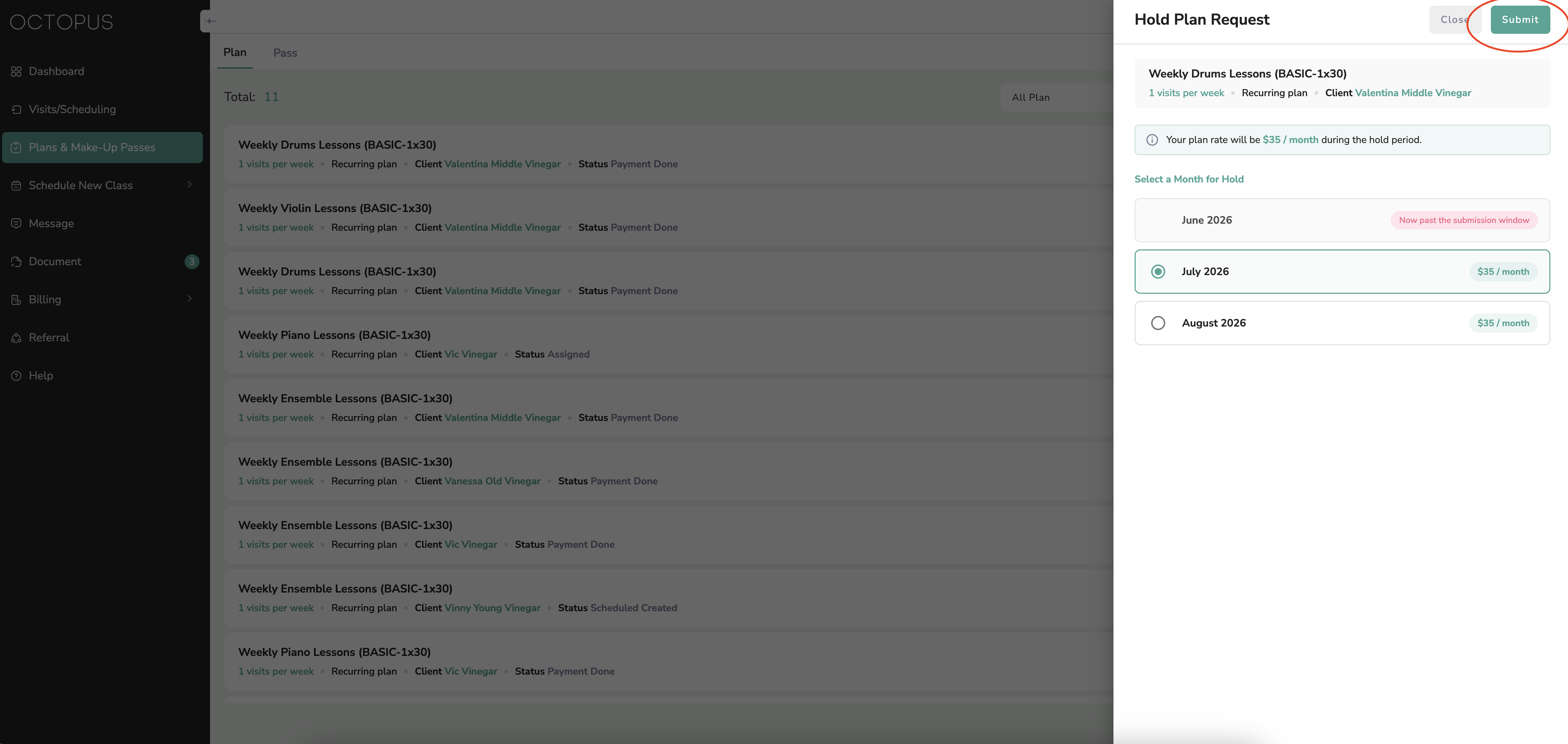
- A plan hold will maintain your current lesson's day, time, and teacher until you return and bring your tuition to $35/month per instrument (including ensembles).
- While utilizing a plan hold, you may not schedule make-up lessons during the month that is on hold. You may resume scheduling make-ups during the month that your lessons resume.
- Plan holds MUST be submitted one week in advance of the requested month's billing in order to be processed successfully.
Please follow the steps below to submit your plan holds at Octopus.
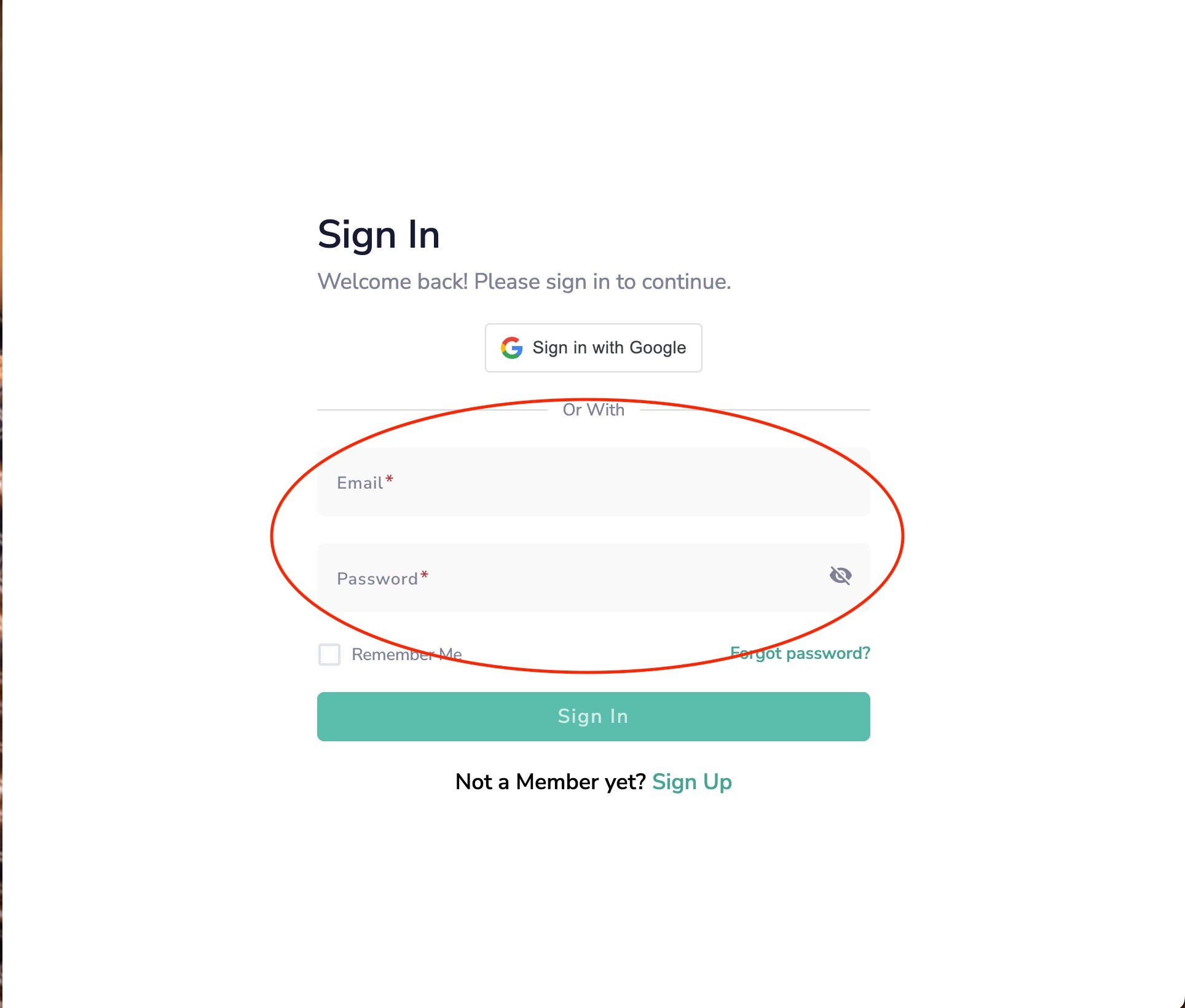
- Step 1: Sign into SQUID
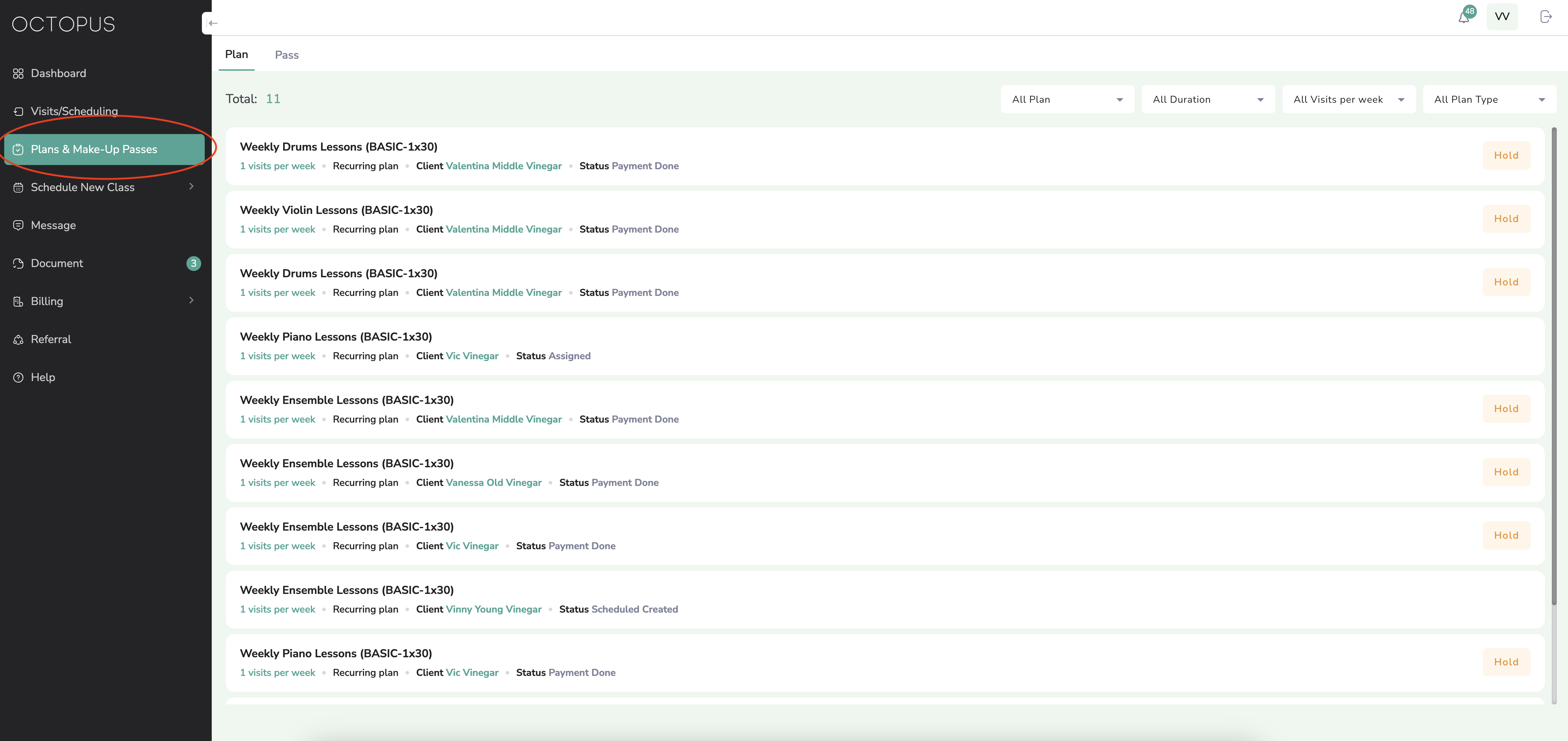
- Step 2: Navigate to the sidebar and select "Plans & Make-Up Passes"
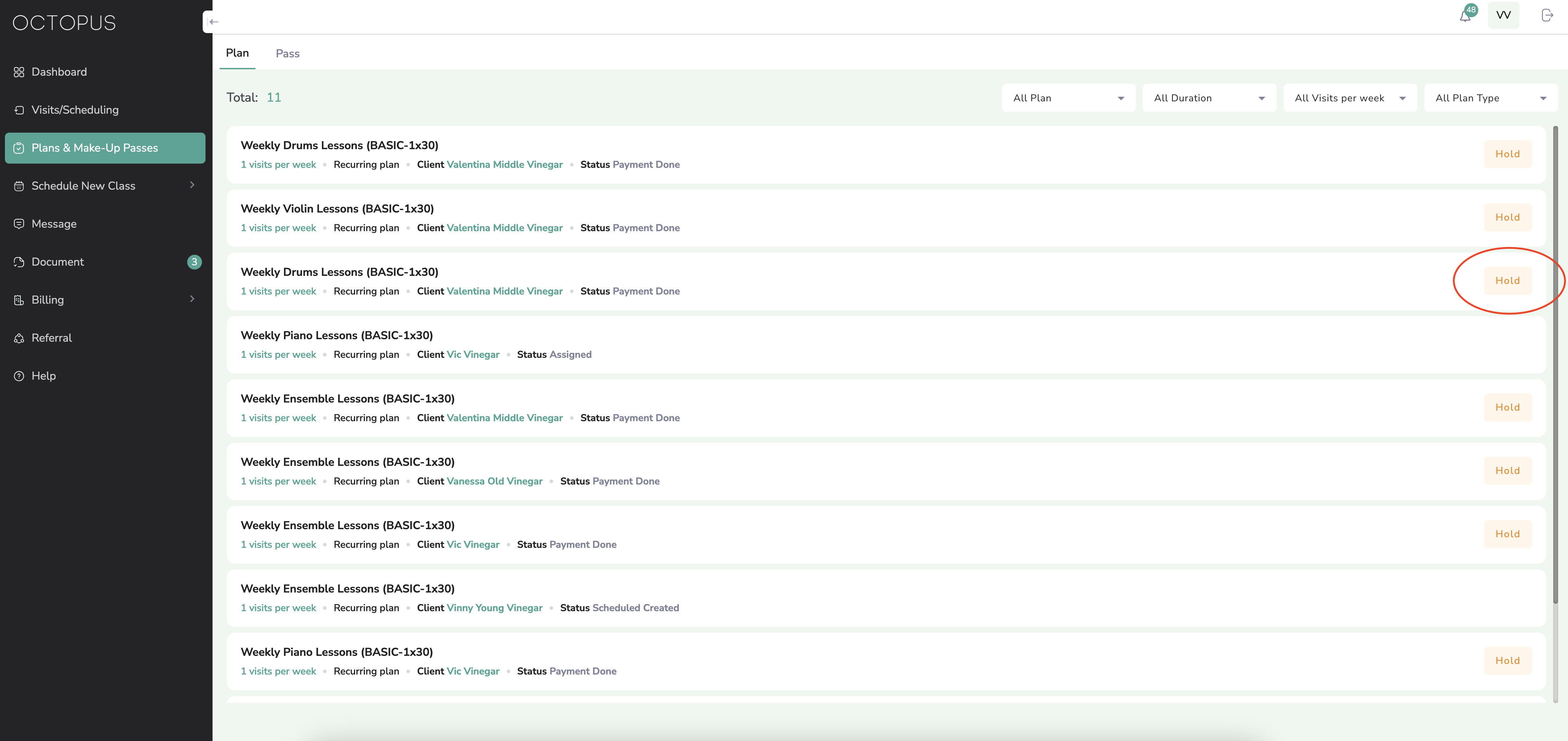
- Step 3: Select "Hold" next to the instrument or ensemble plan you wish to place on hold
- Step 4: Select the month you wish to apply a plan hold for (June, July, or August)
- Step 5: Select "Submit" in the top right corner
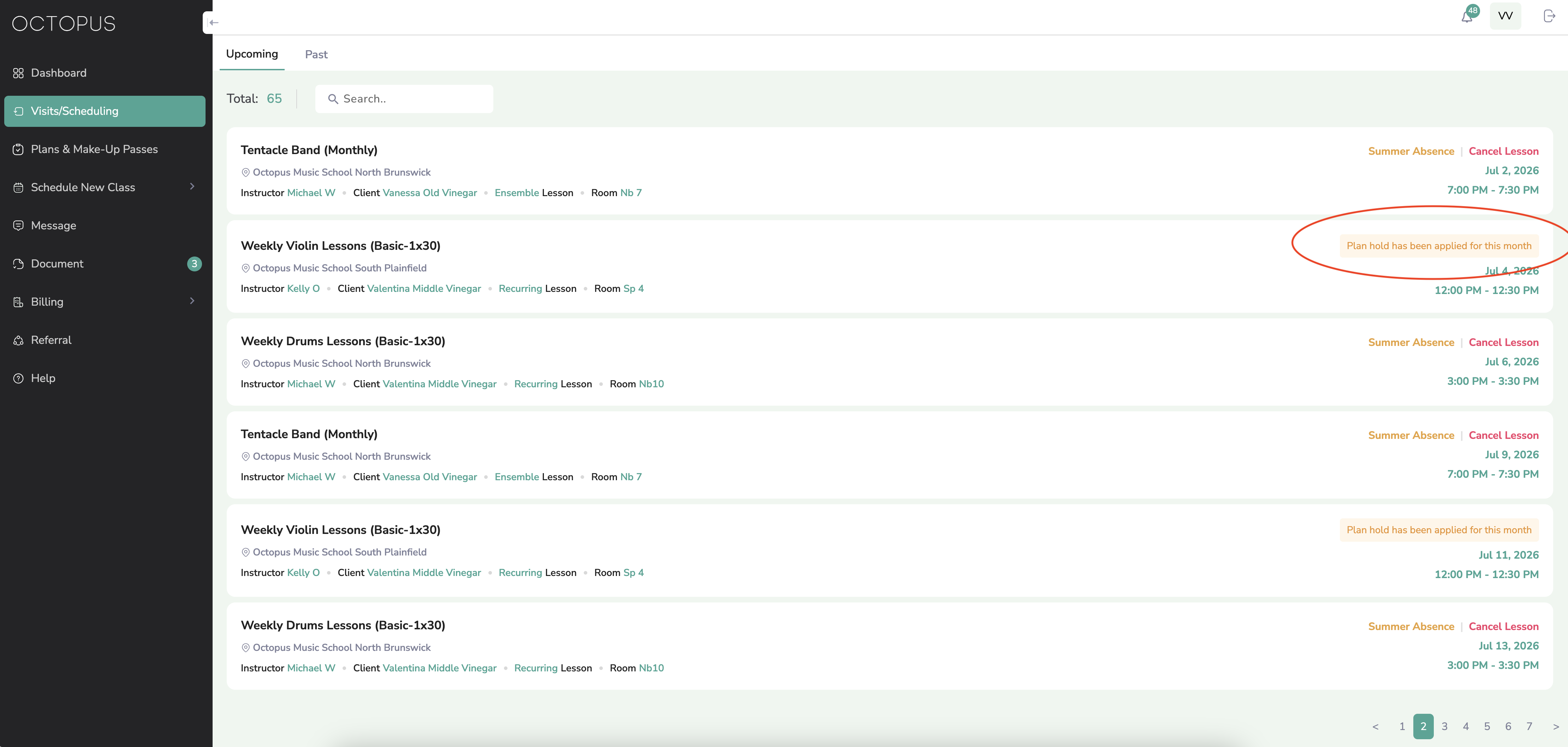
- Step 6: Navigate to "Visits/Scheduling" by using the menu on the left side of the screen. If your plan hold submission was successful, the lessons for that month will indicate "Plan hold has been applied for this month."
- Step 7: Repeat this process for any other plans or months you'd like to place on hold as needed.
- Step 8: Have a great summer!
Instructions to submit a Summer Absence Plan Hold
Step 1: Sign into SQUID
- If you are not already signed into squid.octopusmusicschool.com, sign in with the email you provided when you registered.
Step 2: Navigate to the sidebar and select "Plans & Make-Up Passes"
Step 3: Select "Hold" next to the instrument or ensemble plan you wish to place on hold
Step 4: Select the month you wish to apply a plan hold for (June, July, or August)
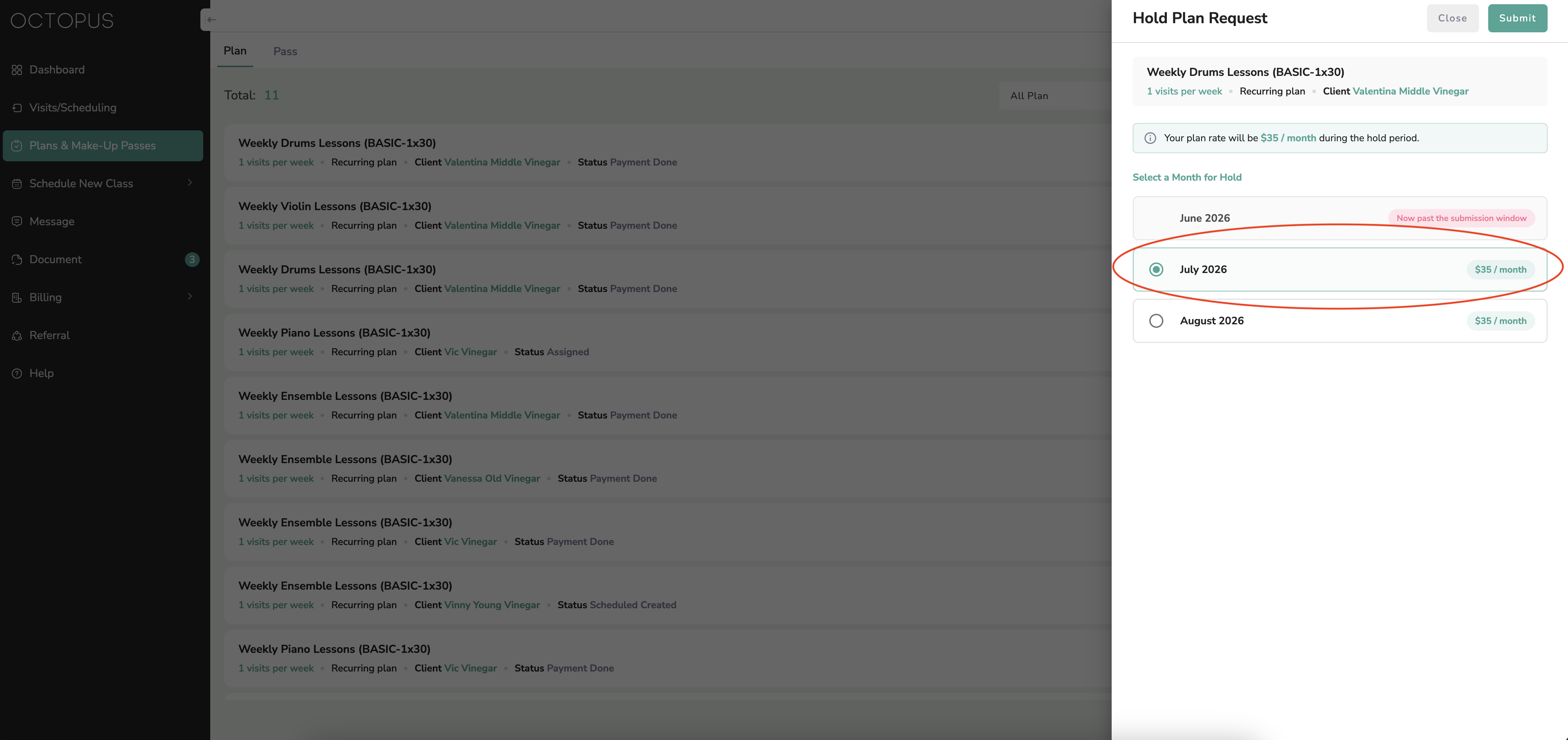
Step 5: Select "Submit" in the top right corner
Step 6: Navigate to "Visits/Scheduling" by using the menu on the left side of the screen. If your plan hold submission was successful, the lessons for that month will indicate "Plan hold has been applied for this month."
Step 7: Repeat this process for any other plans or months you'd like to place on hold as needed.
Step 8: Have a great summer!
Was this article helpful?
That’s Great!
Thank you for your feedback
Sorry! We couldn't be helpful
Thank you for your feedback
Feedback sent
We appreciate your effort and will try to fix the article