This guide is for those who need help scheduling a private make-up lesson. If you are already familiar with how to schedule a private make-up lesson, please click this link to proceed directly to Squid.
Scheduling make-ups using our online system is fast, easy, and can be done from any device with an internet connection. Before you can schedule your make-up lesson, you must first cancel your lesson. If you need help doing that, please feel free to consult this guide on canceling a private lesson.
Please note:
Do not proceed if you have not yet received a make-up pass for your cancellation! You will receive your make-up lesson pass the day after you have canceled your lesson and will receive an email notification of same. If the cancelled lesson is in a month that has not yet been paid for, you will receive your make-up pass the day after you have paid that month's bill.
Make-up lesson passes are only given if:
- You have cancelled 24 hours or more prior to your original lesson time
- The lesson you cancelled is in a month that has been paid for
Instructions to schedule a make-up lesson
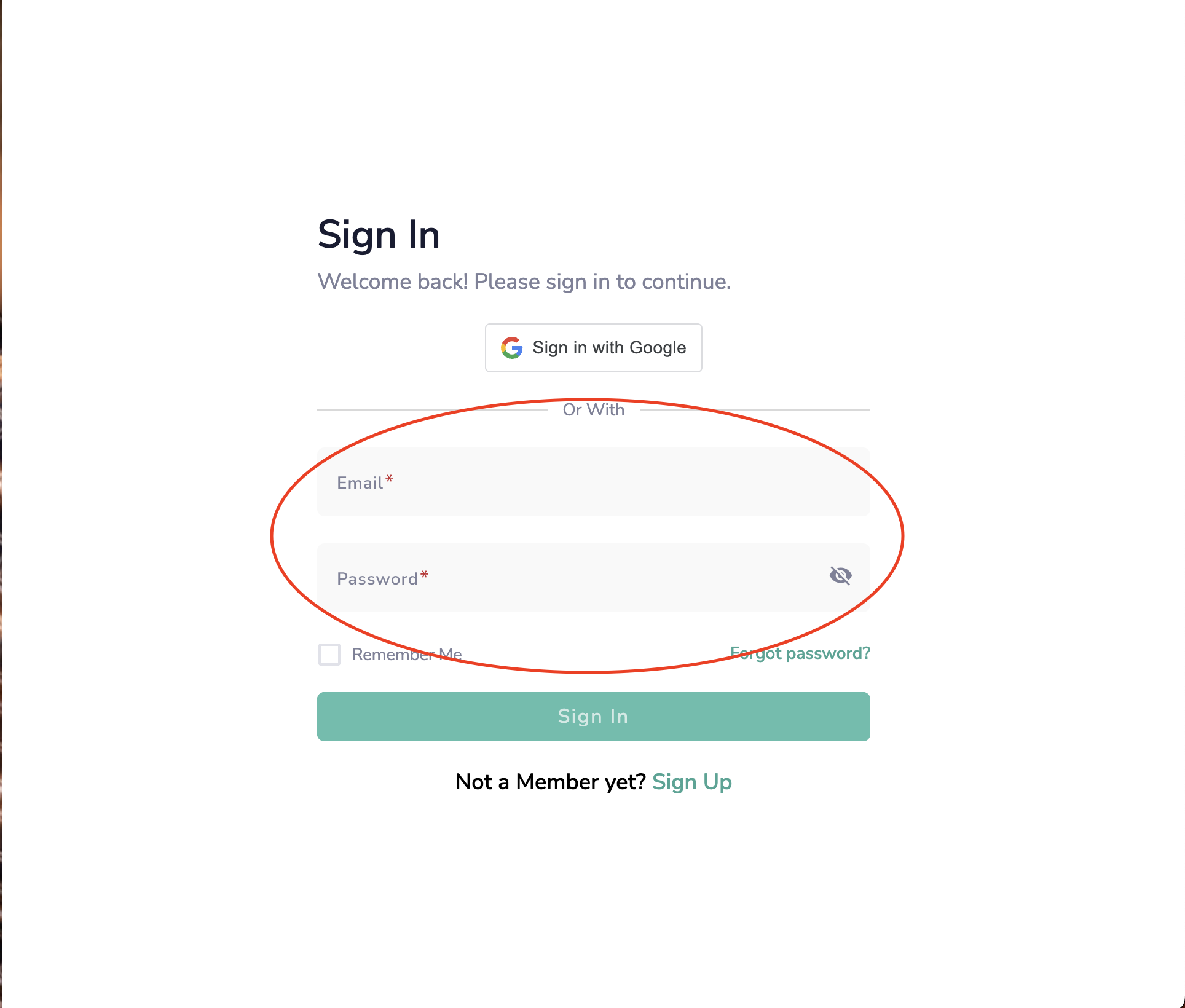
Step 1: Sign into SQUID
- Sign into SQUID using your email address.
Step 2: Cancel your lesson
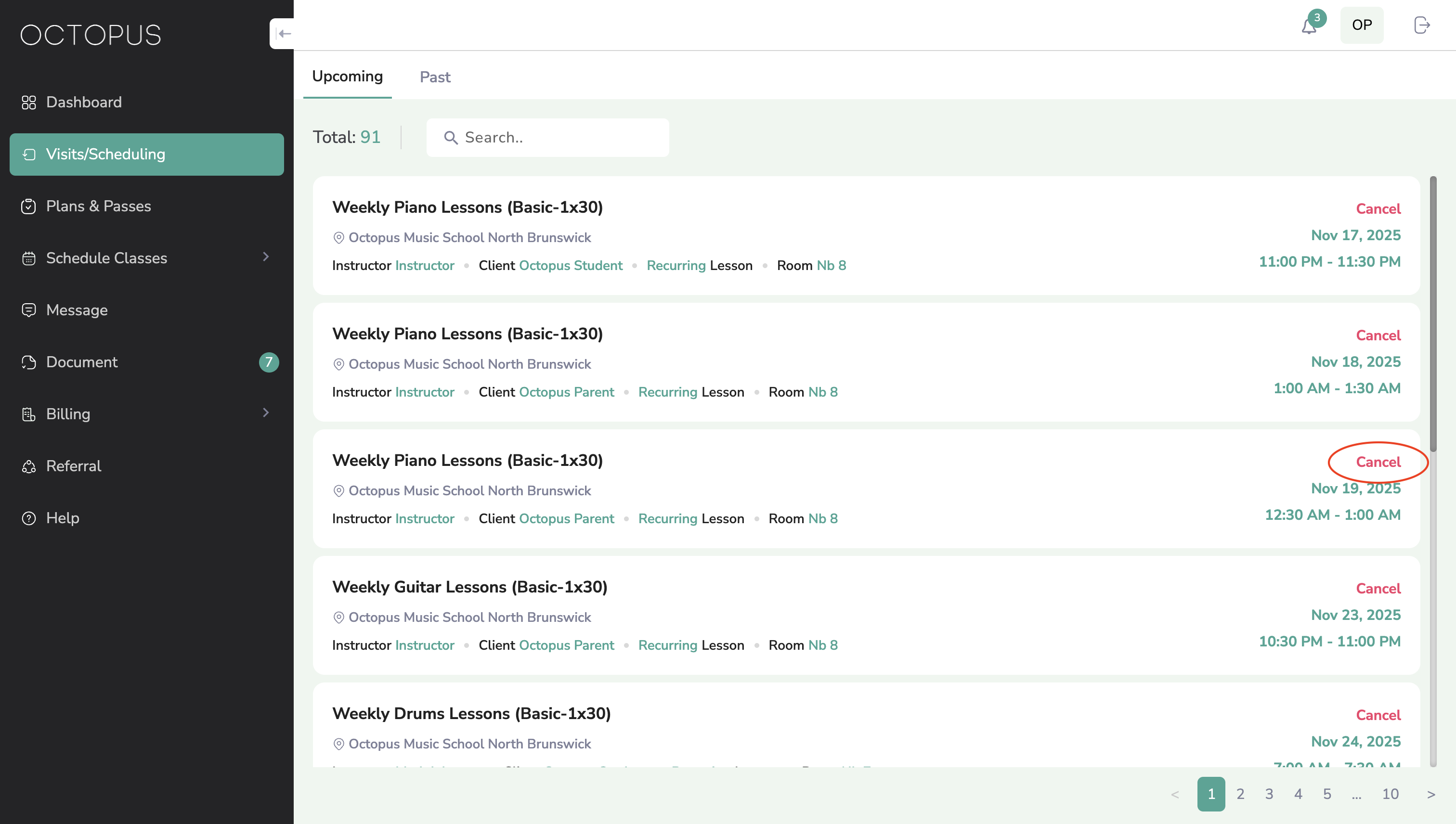
- If you haven’t already done so, cancel the lesson on SQUID you wish to receive a make-up for. If you need help canceling your lesson, please visit our guide on how to cancel a private lesson.
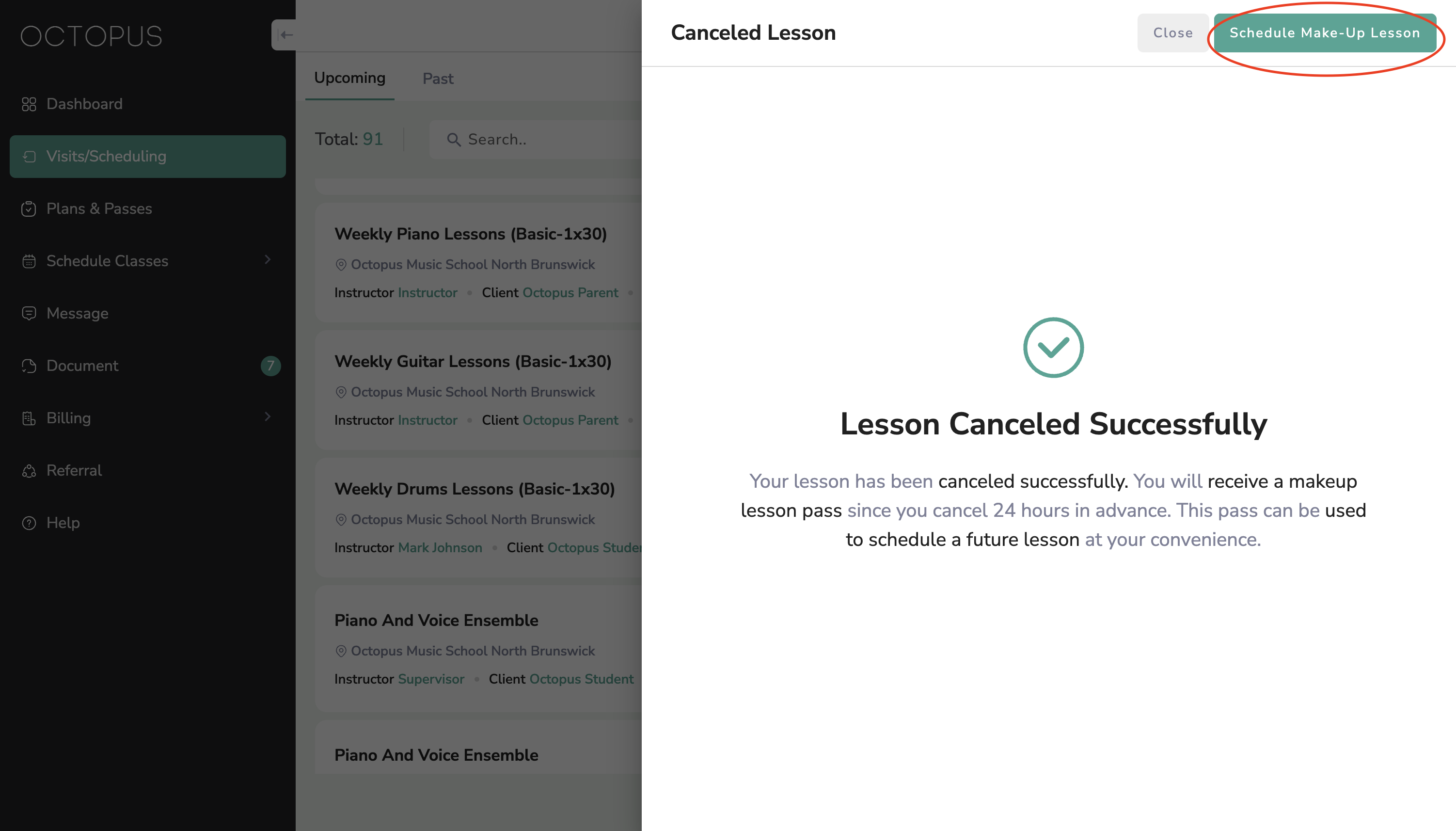
Step 3: Schedule your make-up lesson right away
You may schedule your make-up lesson after the lesson has been canceled using the SCHEDULE MAKE-UP button in the top right hand corner of the window and proceed to Step 4. If you would like to schedule at another time, proceed to Step 3a.
NOTE: If the lesson you canceled is for a month that has not yet been paid for, you will not be able to schedule a make-up until that month's bill has been paid.
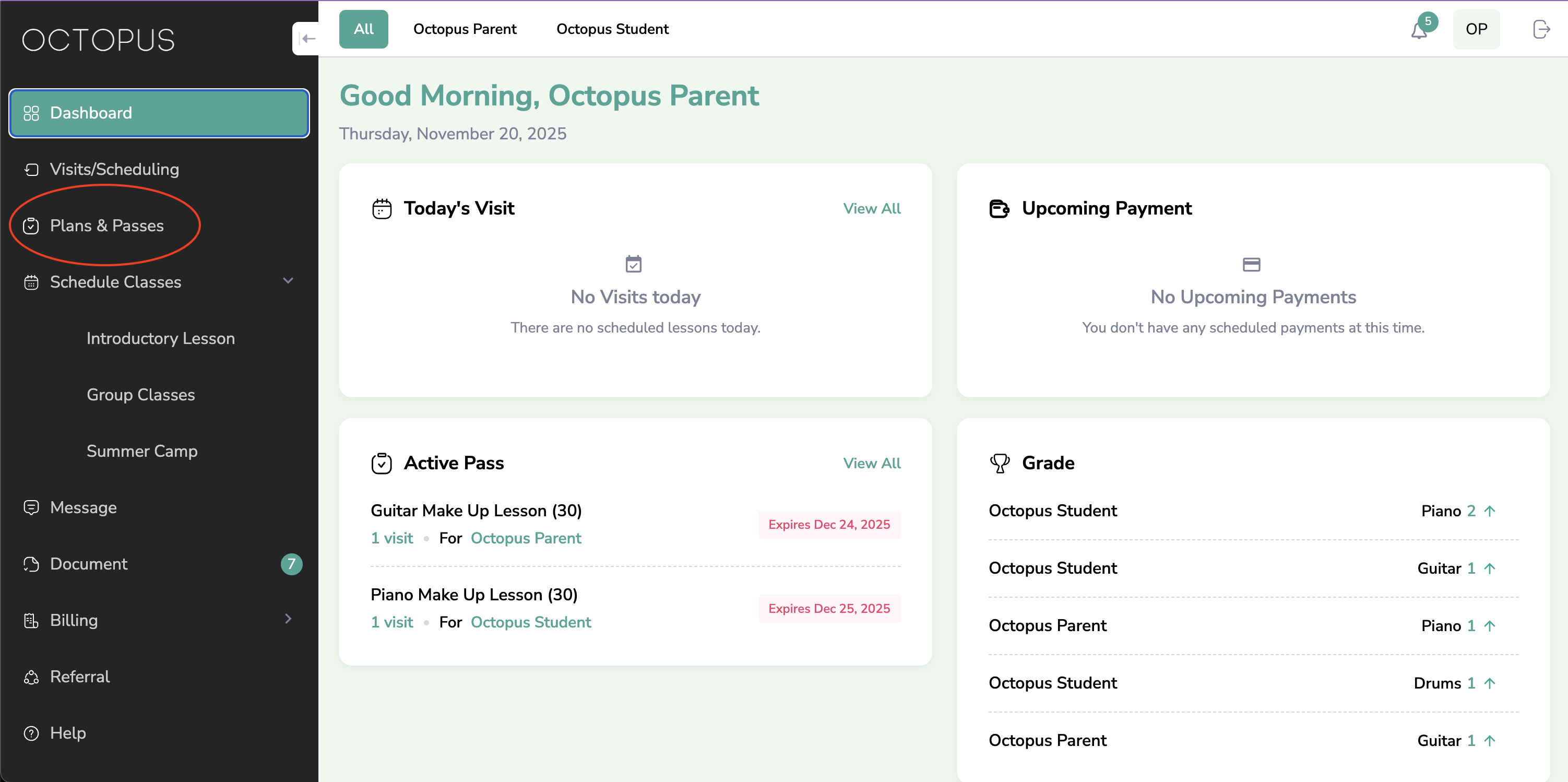
Step 3a: Schedule your make-up lesson at a later time
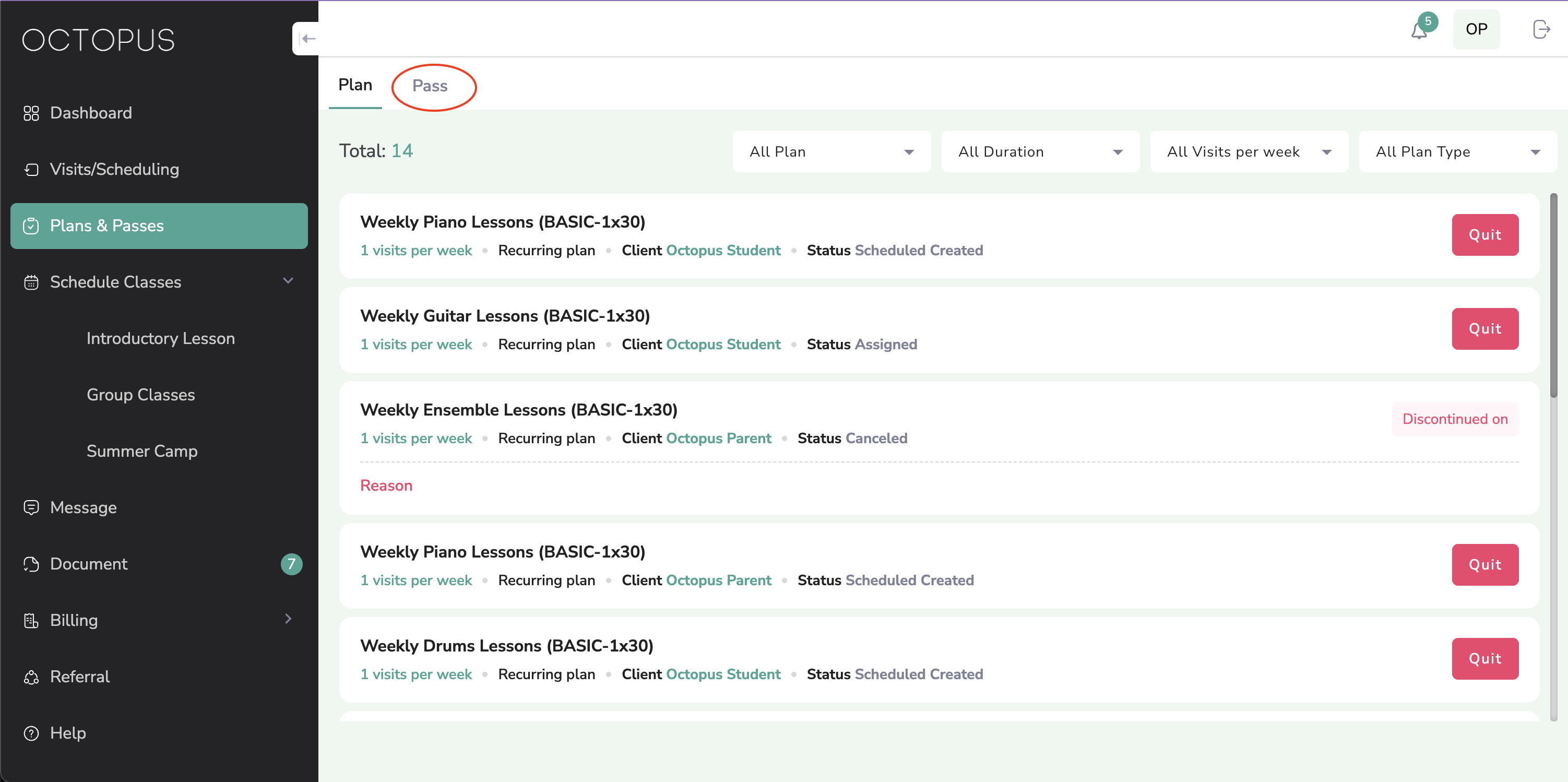
- Navigate to the sidebar and select "Plans & Passes"
Step 3b: Select "Pass"
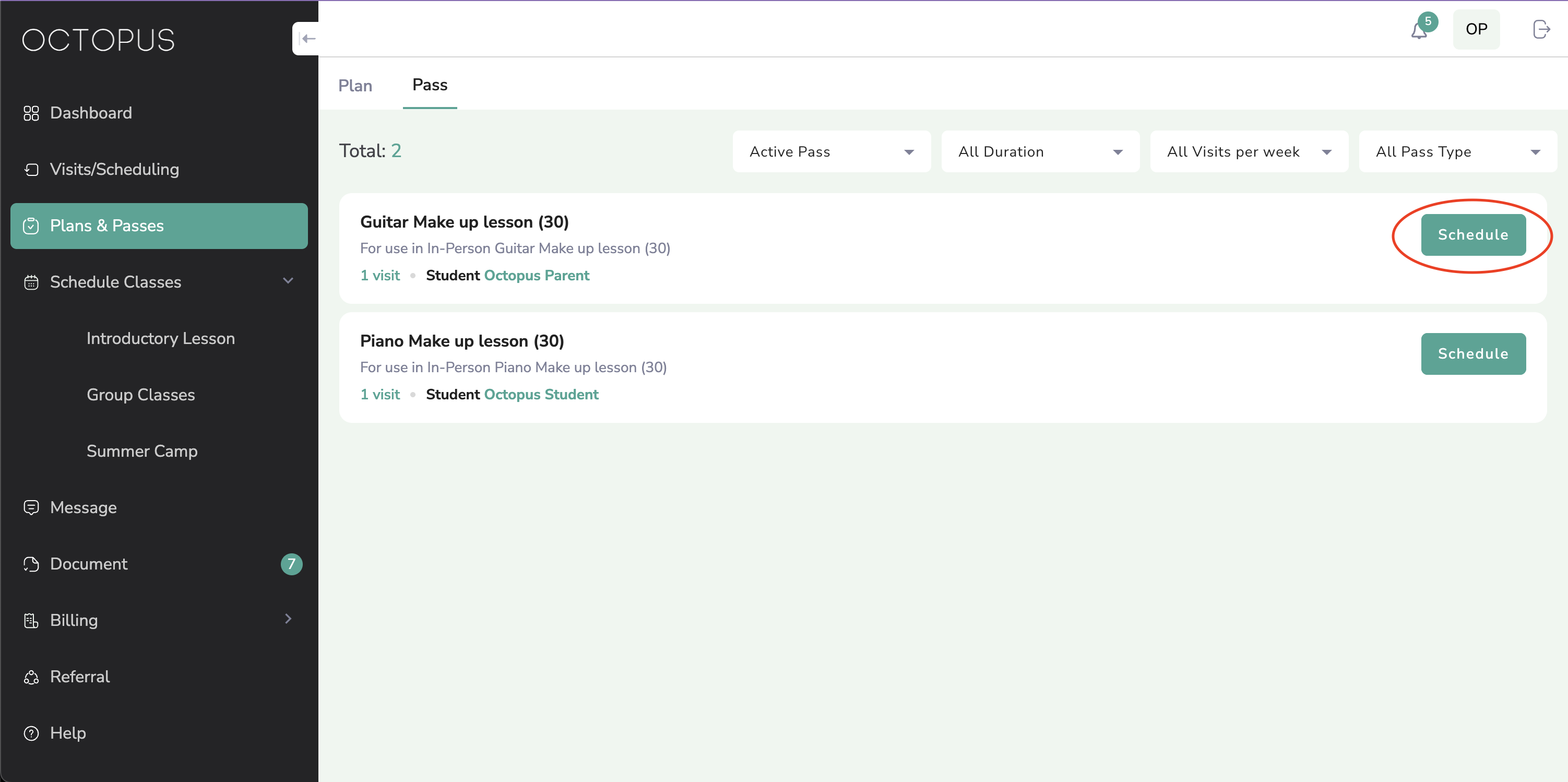
Step 3c: Select make-up lesson to schedule
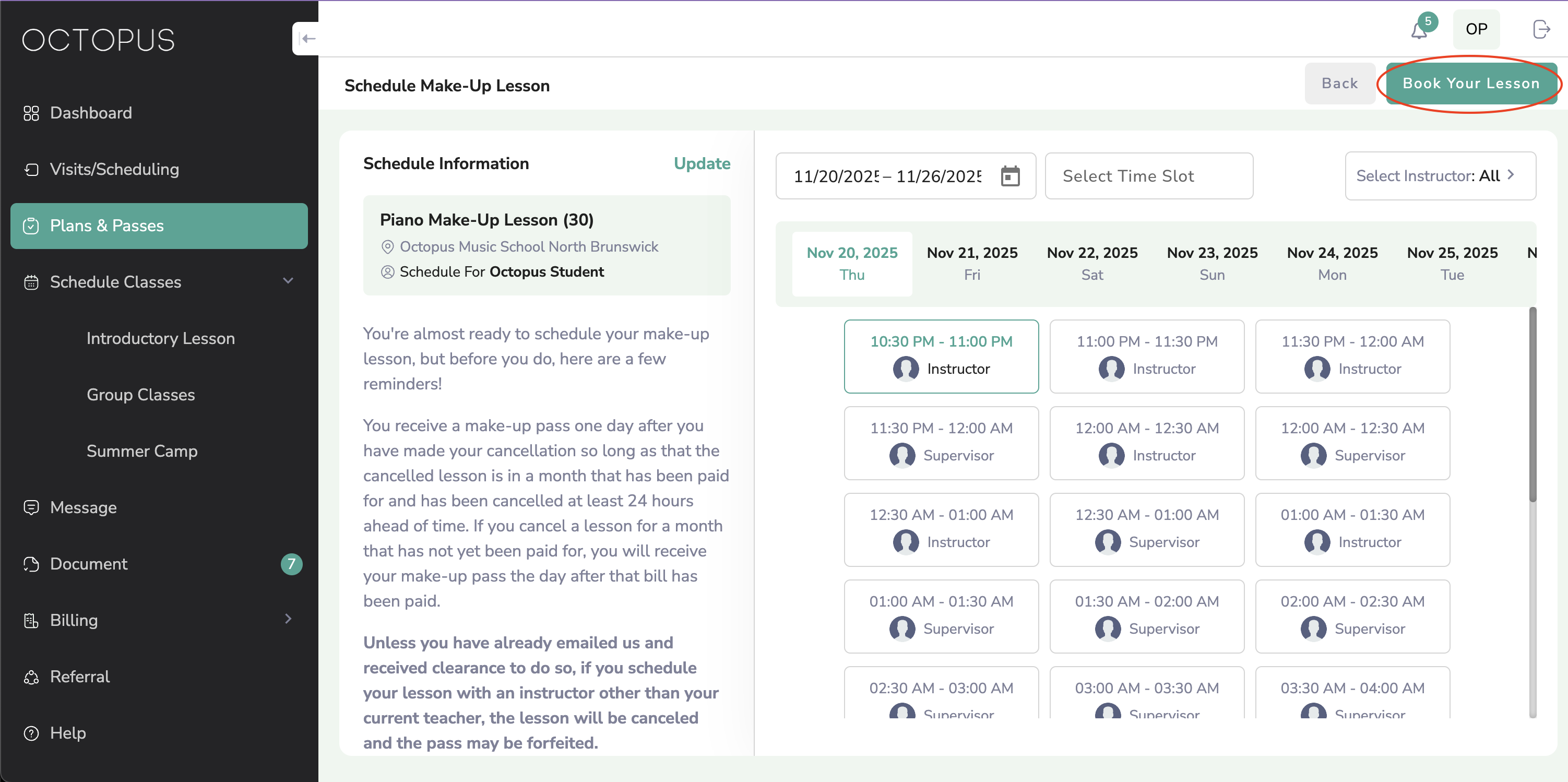
Step 4: Select date, time, and instructor
STOP: Please only select the instructor the original lesson was scheduled with (unless you have already been cleared to schedule with another instructor by a support staff member). Unless given permission by your instructor to do so, please do not book your make-up back-to-back with your regularly scheduled weekly lesson.
- Adjust the filters to view desired times
- WEEK FILTER: changes the week being shown
- TIME SLOT FILTER: changes the earliest start time/latest end time being shown
- INSTRUCTOR FILTER: changes the instructors being shown
- Select a TIMESLOT from the options
- Select BOOK YOUR LESSON
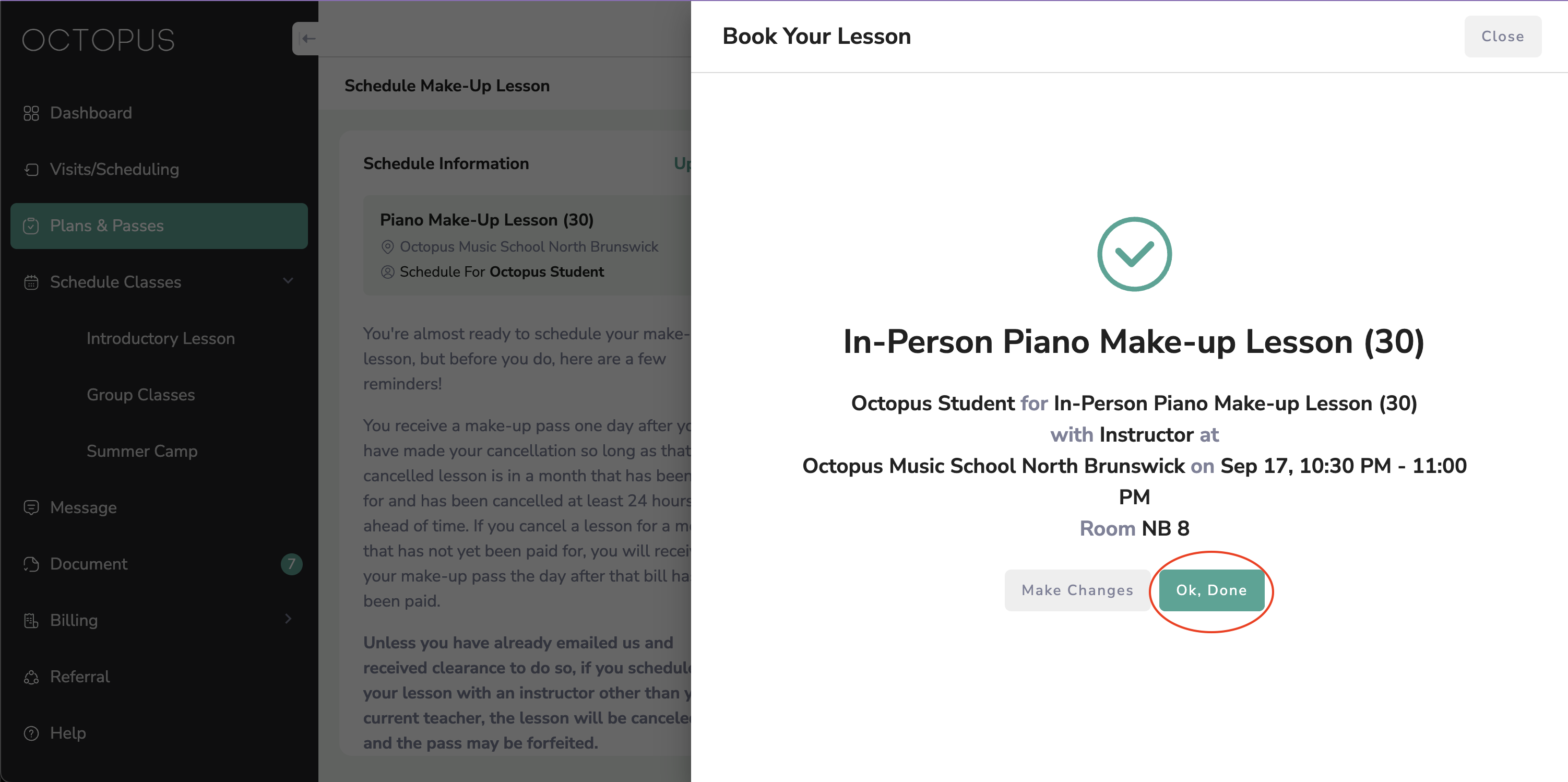
Step 5: Finish booking make-up lesson
- Confirm the information on the confirmation screen
- If it is accurate, select OK, DONE
- If a change is needed, select MAKE CHANGES and return to Step 4
Was this article helpful?
That’s Great!
Thank you for your feedback
Sorry! We couldn't be helpful
Thank you for your feedback
Feedback sent
We appreciate your effort and will try to fix the article